
Time Tracking in Money Pro
Money Pro includes a built-in time tracker so you can log billable hours for clients and add them directly to invoices. Track time using the live timer (start when you begin, complete when you finish) or enter duration manually. All entries appear in the Time & Tasks Dashboard, where you can filter by invoice status and bill clients for hours they owe.

How to Use the Built-In Timer
The timer runs while you work so you don't estimate time after the fact.
- Go to ZenBusiness Money → Time & Tasks
- Click Open Tracker

- Enter the task details: Business, Client, Task name, and optional Notes
- Click Start Tracker

- When the task is done, click Complete

The entry appears immediately in the Time & Tasks Dashboard, tagged to the client and marked as Uninvoiced.
How to Enter Time Manually
If you already know the duration, skip the timer:
- Go to ZenBusiness Money → Time & Tasks
- Click + Add Time
- Enter: Duration, Date, Business, Client, Task, and any Notes
- Click Save

Manual entries work identically to timer entries — they appear in the dashboard and can be added to invoices.
Filtering the Time & Tasks Dashboard
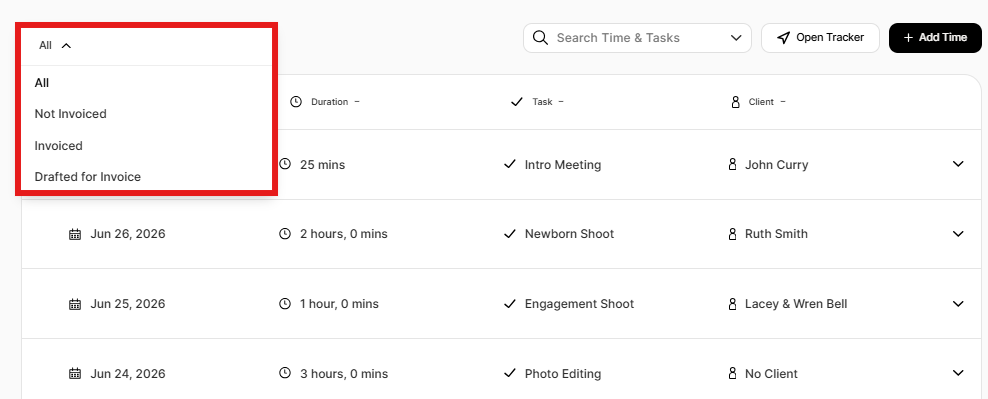
Use the Type filter to find entries by invoice status:
- Click the Type filter
-
Select a filter:
- All — every time entry
- Uninvoiced — hours not yet on any invoice
- Draft — hours attached to a draft invoice
- Invoiced — hours already billed

Uninvoiced is the most useful filter at billing time — it shows all hours that are ready to send to a client.
Adding Time to an Invoice
To bill a client for tracked hours:
- Go to ZenBusiness Money → Invoices
- Click + New Invoice and select the client
- In the invoice, click Time & Tasks (instead of Item or Expense)

- Select the time entries to include — they're automatically filtered to that client
- To adjust the rate for a specific entry, click it and edit the rate
- Click Save, then finish and send the invoice
Once added to a sent invoice, those entries move from Uninvoiced to Invoiced in the dashboard, so they can't be accidentally billed again.
Set your default hourly rate: Go to the Invoice Dashboard → gear icon → Advanced Settings → Default Hourly Rate. This applies automatically when time entries are added to invoices. You can override it per entry or per client when creating the invoice.
Time & Tasks Reports
To export a time log for client billing or taxes:
- Go to ZenBusiness Money → Reports
- Look for Time & Task Reports
- Choose a report type:
- Business Time — total hours by business
- Business Time by Client — breakdown by client
- Business Time by Task — breakdown by task type
- Time & Task Detail List — downloadable spreadsheet with every entry
- Set your date range and click Download or Email Report
Frequently Asked Questions
Can I track time for multiple clients simultaneously?
No. The built-in timer tracks one task at a time. To switch clients, stop the current timer and start a new one. For the same date you can have multiple manual entries covering different clients.
Can I edit a time entry after saving it?
Yes. Click any entry in the Time & Tasks Dashboard to expand it and make changes. If the entry is already on a sent invoice, remove it from the invoice first, then edit it.
What happens to time entries after I send an invoice?
They're marked Invoiced and are no longer available to add to future invoices. This prevents accidental double-billing. If you need to re-bill for the same time (e.g., the original invoice was voided), contact our support team.
Does Money Pro support team time tracking?
No. Time & Tasks is a personal time logger for the business owner. It does not support assigning tasks to employees or tracking hours for multiple team members.
Can I track non-billable time?
Yes — log the time and leave the Client field blank, or tag it to a client without adding it to an invoice. Those entries stay in the dashboard as Uninvoiced indefinitely and appear in the Time & Task Detail List export.
Where do I find my time reports for tax filing?
Time is not directly deductible as a business expense, but if you use it to bill clients, the invoiced revenue flows through your income reports. Run Business Time by Client for a client billing summary or Time & Task Detail List for a full log.