
Invoicing with Money Pro
Create professional invoices, send quotes, accept online payments, and track who owes you — all in one place.
Overview
Getting paid is the whole point of running a business — but chasing invoices is one of the most frustrating parts. Money Pro's invoicing tools let you create professional invoices in minutes, send them directly to clients, accept card and bank transfer payments online, and track exactly who has paid and who hasn't.
Money Pro invoicing integrates directly with your expense tracking. When a client pays an invoice, that payment flows into your income records automatically. Your Profit & Loss statement reflects both your revenue and expenses without any additional data entry. At tax time, your financial picture is already complete. If a client pays outside Stripe, see Record Direct Invoice Payments Outside Stripe in Money Pro. If the invoice includes reimbursable expenses, see Record Reimbursed Expenses and Expense Refunds in Money Pro.
Invoicing in Money Pro supports the full client billing lifecycle: quotes and estimates that convert to invoices, recurring invoices for retainer clients, payment links, automated reminders, and online payment collection through your ZenBusiness merchant account. Everything lives under Finances → Money Pro → Invoices in your dashboard sidebar.
Setting Up Your Invoice Template
Before sending your first invoice, spend two minutes personalizing your template:
- Go to Finances → Money Pro → Invoices
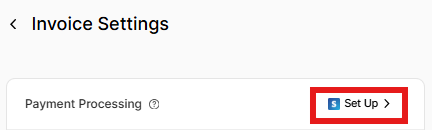
- Click the gear icon on the invoice dashboard

- Upload your business logo
- Choose your brand color theme

- Enter your business information: address, phone number
- Note: the email address is tied to your ZenBusiness account and cannot be changed here. Contact our support team to update your account email.
- Set a default message (optional intro text that appears on every invoice)
-
Set your default payment terms:
- Due now / Due in 10 days / Due in 15 days / Due in 30 days / Due in 60 days / Custom

Creating and Sending Invoices
Create a New Invoice
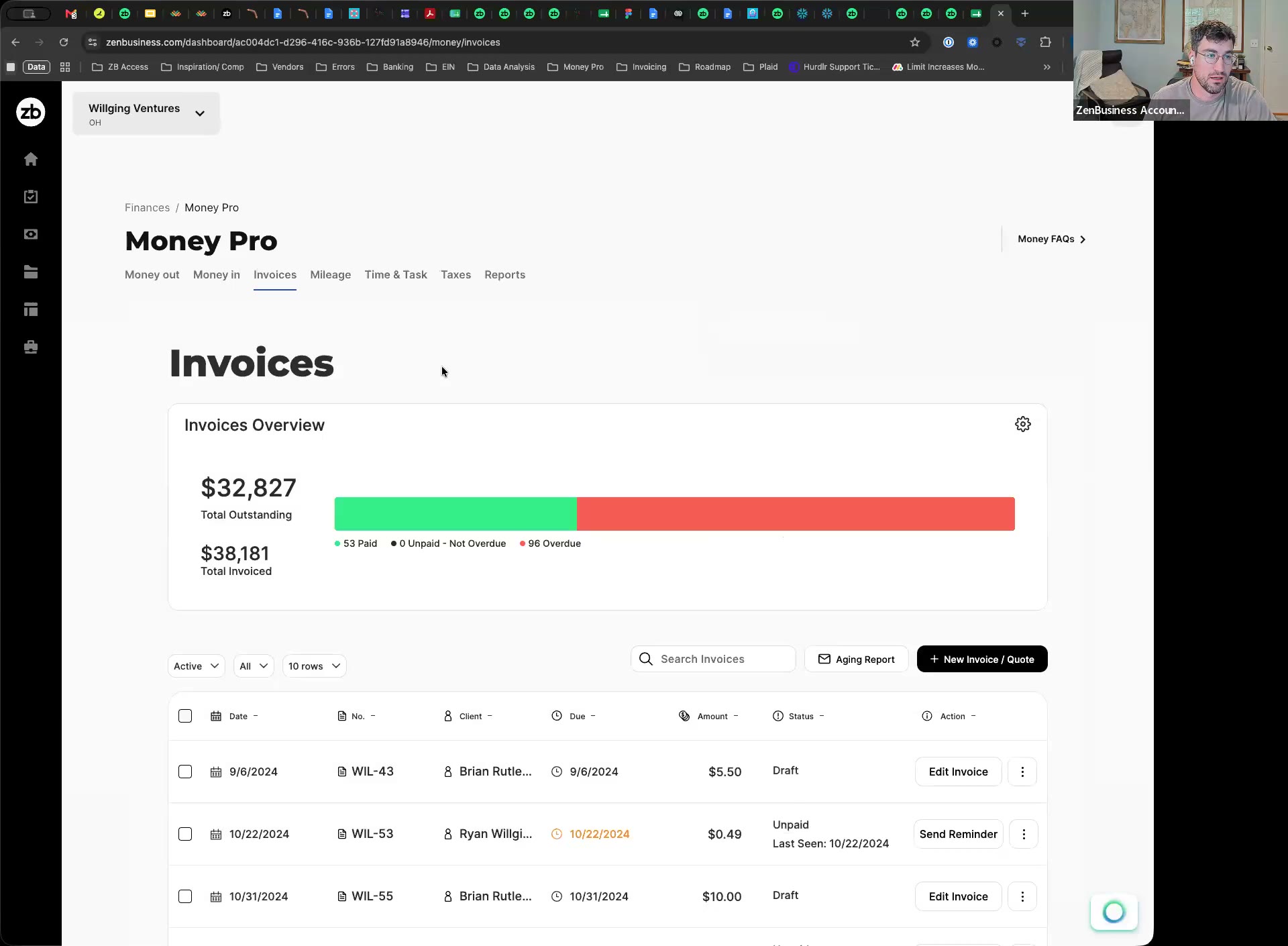
- From the sidebar: Finances → Money Pro → Invoices
-
Click + New Invoice / Quote

-
Select your business from the dropdown (if you have multiple)
- Select or add a client (see Adding Clients below)
- Add line items: description, quantity, price, and any applicable taxes
- Set the invoice date and due date (or select payment terms and the due date calculates automatically)
- Set the frequency if this is recurring (see Recurring Invoices below)
- Add a memo with notes, payment instructions, or late fee policy (optional)
- Review the total, then click Next → Save and Send to email it, or Save to keep as a Draft

Adding a Client
Directly on the invoice:
1. On the New Invoice page, click the Client box → Add new client
2. Type the client's name and click Add
3. Enter the client's full information and save
From the client list:
1. Click the gear icon on the invoice dashboard → Clients
2. Click + Add and enter the client info
3. To delete a client: click their name from the list → Delete Client
Sending a Quote or Estimate
Quotes let you send a price proposal before converting it to an invoice when the client approves:
Option 1 — From a new invoice:
1. Create the invoice normally
2. On the New Invoice / Quote page, click Next → choose Send as Quote
Option 2 — From a Draft:
1. On the invoice dashboard, find the Draft invoice
2. Hover over the three-dot menu → Send as Quote

Converting a Quote to an Invoice:
1. Go to Finances → Money Pro → Invoices and find the quote
2. Click Next → Save and Send to convert and send as a final invoice
Recurring Invoices
For clients on retainers or subscriptions, set the billing frequency directly on the invoice:
- While creating the invoice, find the Frequency field
- Open the dropdown and select how often to send (weekly, monthly, etc.)
- Save — Money Pro will automatically generate and send the invoice on that schedule
Heads up: Money Pro generates recurring invoices 7 days before the scheduled send date. This means an invoice with a February 1 send date is created and visible in your dashboard on January 25. To cancel or edit a recurring invoice before it sends, review your invoice list a week before the expected date. Once generated, you can delete the instance from the Active tab before it goes out.
Creating a Payment Link
Send clients a direct link to pay without emailing the full invoice:
From a Draft invoice:
1. Select the invoice → click Next → Other Options → Save Final and Create Link → Copy Link

From a Sent invoice:
1. Select the invoice → click Other Options → Create Link → Copy Link

Share the link however you prefer — text, email, website button.
Invoice Statuses
| Status | Meaning |
|---|---|
| Draft | Created but not yet sent |
| Active | Sent invoices that are unpaid + all Drafts |
| Unpaid | Sent to client, payment not yet received |
| Paid | Paid in full |
| Refunded | A paid invoice where payment was returned to the client |
| Archived | Cancelled invoices |
Editing invoices: You can only edit an invoice that is in Draft status. To edit a sent invoice that's already gone out, you'll need to cancel and recreate it, or add a line item adjustment.
Payment Reminders
Send a Reminder Manually
- Find the invoice in the dashboard (must be in Sent/Unpaid status)
- Click Send Reminder directly from the list, or open the invoice and find Send Reminder in the actions area
Set Automatic Reminder Frequency
- Click the gear icon on the invoice dashboard
- Select Payment Reminders → Frequency Settings
- Choose one or more reminder triggers (e.g., 3 days before due, 1 day after due, 7 days after due)
- Save — these settings apply to all future invoices
Collecting Payments Online: The Merchant Account
Money Pro includes a built-in merchant account powered by our payment processing partner. Once approved, you can accept credit cards and ACH bank transfers directly through your invoices — no third-party payment account needed.
What It Lets You Do
- Accept Visa, Mastercard, American Express, Discover credit and debit cards
- Accept ACH bank transfers (electronic check directly from client's bank account)
- Paid invoices are automatically marked as "Paid" — no manual recording needed
Setting Up Your Merchant Account
- Go to Finances → Money Pro → Invoices
- A pop-up will appear prompting you to apply for your merchant account — click Get Started
- Complete the application
- Watch your email — we may request additional documentation to verify your identity and business
- Your merchant account is typically ready within 5 business days of approval
Note: Only 1 merchant account is available per ZenBusiness user, even if you have multiple businesses. You can use that one merchant account to accept payments for any of your businesses.
ACH vs. Card Payments
| Type | Payment Method | Settlement Time |
|---|---|---|
| Card | Debit or credit card (Visa, MC, Amex, Discover) | 2–3 business days to merchant account |
| ACH | Bank account direct transfer (electronic check) | 2–3 business days to merchant account |
Payout follows a two-leg process: first the payment clears in Stripe (ACH ~2 business days, card ~1–2 business days), then Stripe automatically initiates a transfer to your connected bank account (~1–2 more business days). Total: typically 3–4 business days for ACH, 2–4 business days for card.
First payment hold: The first payment processed through your Stripe account is held for 7 business days before being paid out. This is a standard Stripe verification hold that applies once. After your first payment, normal timing applies.
You can check payout status at stripe.com → Balance. If you need funds faster, Stripe offers Instant Payout (1.5% fee, ~30 minutes, initiated from the Stripe Balance dashboard) — see the FAQ below.
You don't need a merchant account to use invoicing. You can create and send invoices at any time without applying. The merchant account just enables online payment collection — clients can still pay by check or wire transfer if you record payments manually.
Matching Payouts to Invoices (for Third-Party Processors)
If your clients pay through a third-party processor like PayPal or Square, the deposit in your bank account may be less than the invoice total due to processing fees. Here's how to reconcile that accurately:
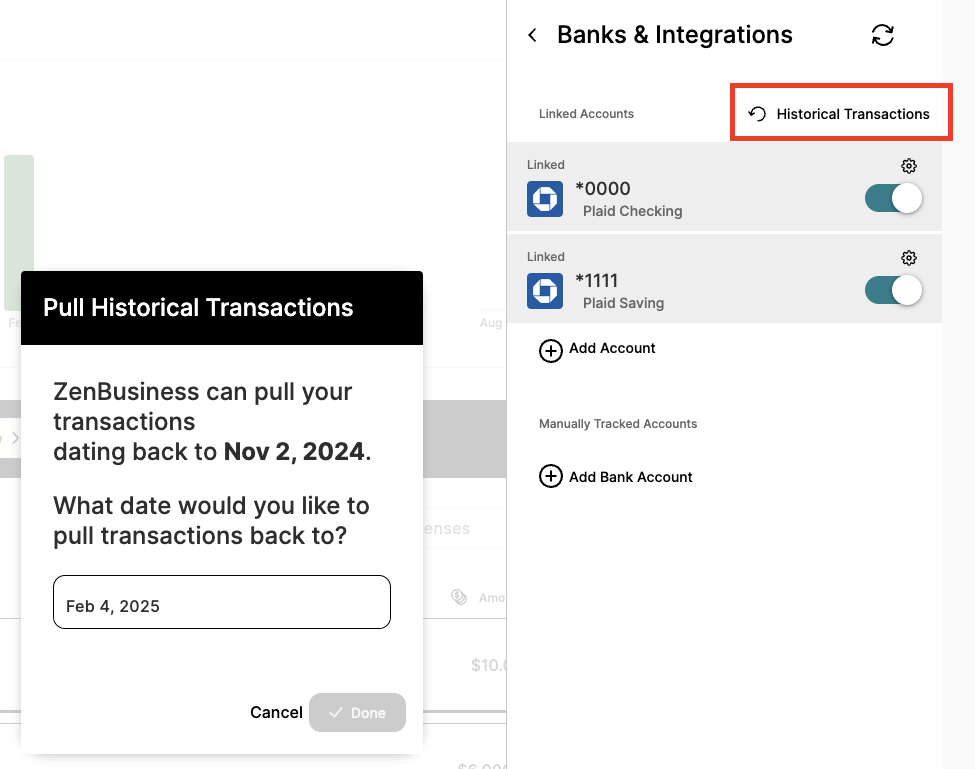
- Create a Manually Tracked Account (e.g., "PayPal Clearing") in Banks & Integrations → scroll to Manually Tracked Account → Add Bank Account
- Manually enter income for the gross payment amount, assigned to the Manually Tracked Account
- Manually enter an expense for the processing fee, also assigned to the Manually Tracked Account
- Open the invoice → click Add Bank Transaction → select the manually entered income transaction
- On the Transaction Dashboard, find the actual deposit from your bank, convert it to a Bank Transfer with the Manually Tracked Account as the source, and itemize the income and expense transactions in the payout
This ensures your gross income and processing fees are both captured correctly and your books match your actual bank activity.
Frequently Asked Questions
Do I need to set up a merchant account to send invoices?
No. You can create and send invoices at any time regardless of merchant account status. The merchant account is only required if you want clients to pay online via card or ACH directly from the invoice. Without it, you record payments manually when clients pay by check, wire transfer, or other means.
Can I create and send invoices from the ZenBusiness mobile app?
Yes. Invoicing is available on both the ZenBusiness mobile app (iOS and Android) and the web dashboard at zenbusiness.com. You can create, send, and track invoices from whichever you're using, and your data stays in sync across both.
How do I set up recurring invoices for retainer clients?
When creating the invoice, find the Frequency dropdown on the New Invoice / Quote page and select your billing schedule (weekly, monthly, etc.). Money Pro will auto-generate and send the invoice on that schedule. You can change or stop the frequency by editing the invoice while it's still in Draft.
Can I send a quote before sending a final invoice?
Yes. Money Pro supports quotes and estimates. Create the invoice normally and at the send step choose Send as Quote. When the client approves, open the quote and click Next → Save and Send to convert it to a final invoice.
What's the difference between ACH and card payments?
A card payment is made with the client's debit or credit card. An ACH payment is a direct bank-to-bank transfer where the client authorizes a payment from their bank account — also known as an electronic check. ACH has no Stripe per-transaction fee beyond the Money Pro included processing. See our Collecting Payments article for full fee details.
How long does it take to get paid?
Payout follows a two-step process: (1) the payment clears in Stripe (~2 business days for ACH, ~1–2 for card), then (2) Stripe automatically initiates a transfer to your connected bank (~1–2 more business days). Total: typically 3–4 business days for ACH, 2–4 business days for card. The invoice is marked "Paid" as soon as payment is received — you don't need to wait for the bank transfer.
First payment: If this is the first payment processed through your Stripe account, Stripe applies a one-time 7-business-day hold before paying out. Normal timing resumes for all payments after the first.
Can I get my payout faster?
Yes. Stripe Instant Payout lets you move available Stripe balance to your bank within ~30 minutes. The fee is 1.5% of the transfer amount (minimum $0.50). To use it, log in at stripe.com → Balance → initiate an instant payout. Your bank must support the Visa or Mastercard Fast Funds network; most major U.S. banks do. Instant Payout only works with available balance — funds still pending (like an ACH payment still clearing) cannot be instantly paid out yet.
Why is my merchant account application taking longer than 5 business days?
We may have requested additional documentation to verify your identity or business. Check your email — we'll reach out directly if we need anything. If you haven't received any emails and it's been more than 5 business days, contact our support team and we'll investigate.
Can I have a merchant account for more than one business?
Not currently. Each ZenBusiness user has one merchant account, regardless of how many businesses you have with ZenBusiness. You can use that single merchant account to collect payments for any of your businesses.
I need to edit an invoice I already sent. How?
Invoices can only be edited in Draft status. Once sent, they're locked. Options: (1) void/cancel the sent invoice and create a new one, or (2) add a corrective line item to the original invoice and resend. Contact our support team if you need help with a specific situation.
A recurring invoice appeared in my dashboard a week before I expected it. Is something wrong?
No — this is expected. Money Pro generates recurring invoices 7 days before their scheduled send date. An invoice due February 1 will appear in your dashboard on January 25. Review and edit it in Draft status before it goes out, or delete that instance if you don't want to send it.
My Time & Tasks entries aren't showing up when I create a new invoice. Where did they go?
Time & Tasks entries that are already linked to another invoice (draft or sent) are hidden from the entry picker — this prevents double-billing. Check your invoice list for any drafts or sent invoices that may have picked up those entries. If an entry is attached to a draft you don't intend to send, delete or archive that draft to release the entries back to the picker.
Should I use "Add Bank Transaction" or "Add Cash Payment" when marking an invoice paid?
Use Add Bank Transaction whenever the money goes into your bank account — ACH transfers, wires, deposited checks, or online payments through Stripe. The invoice links directly to the synced bank deposit, keeping your books reconciled. For non-Stripe payments by check, cash, ACH, wire, or other direct methods, see Record Direct Invoice Payments Outside Stripe in Money Pro.

Use Add Cash Payment only when you receive physical cash that you keep on hand and never deposit. If you later deposit the cash, reopen the invoice, remove the cash payment entry, then click Add Bank Transaction and select the deposit after it syncs. This prevents the income from appearing twice in your reports — once as the cash payment and again as the bank deposit.
| Scenario | Use |
|---|---|
| ACH, wire, deposited check, Stripe payout | Add Bank Transaction |
| Online card payment via Stripe | Add Bank Transaction (when payout syncs) |
| Cash kept in petty cash, never deposited | Add Cash Payment |
| Cash you deposited at the bank | Add Bank Transaction (after deposit syncs) |
How do I apply one bank deposit to multiple invoices?
Open the deposit in Money In, click Advanced, select Invoice, then check all the invoices the payment covers. Money Pro allocates the total across them and marks each as Paid. The deposit total must equal or exceed the sum of the selected invoices. You can also do this from any single invoice: Add Bank Transaction → select the deposit → on the next screen select the additional invoices to include.
A client paid my invoice but the income is showing up twice — once in invoices and once in my bank transactions. How do I fix it?
This is an income duplication issue. When a client pays via your merchant account, the invoice records the income. When the payout arrives in your linked bank account, Money Pro may also import it as a separate income transaction. To correct this: find the bank deposit transaction in your Expenses/Transactions list, open it, and change it from "Income" to "Transfer" or "Ignore" — this removes it from your P&L without deleting it. Only the invoice payment should count as income; the bank deposit is a payout of that same income. For direct payment examples, see Record Direct Invoice Payments Outside Stripe in Money Pro.
Can clients pay in currencies other than USD?
Money Pro invoicing currently supports USD only. If you work with international clients who pay in other currencies, record the USD equivalent at time of payment using manual payment recording.
My client didn't receive the invoice or receipt email. What should I do?
Almost always the recipient email address is mistyped or doesn't exist, so the email bounces — even though Money Pro shows it as sent and you may get an "Invoice was not delivered" notice. Open the invoice, check the client's email for typos or extra spaces, and confirm the exact address with your client. Ask them to check their spam or junk folder, then resend from the Invoicing tab. If an address bounced repeatedly, our email system may keep blocking it even after it's corrected — if a valid address still isn't getting through, contact our support team to clear the block.
I CC'd myself on the invoice but never got my copy. Is invoicing broken?
Usually not. Your CC copy is sent separately from your client's, so it isn't stopped by a problem with the client's address. In most cases the copy was delivered but landed in your Spam, Junk, or Promotions folder — search those for the invoice number and the sender. If you received an "Invoice was not delivered" notice but no copy, that points to the client's address failing, not yours: correct the client's email and resend, and your copy should arrive normally.
Related Articles
Still need help?
Contact our support team for merchant account or general invoicing questions. We're available Monday–Friday during business hours.