
Money Pro Account Types — Business Only, Mixed Use, and Personal
When you link a bank account to Money Pro, you set an account type that controls how transactions are automatically tagged. Business Only tags everything as business (best for dedicated business accounts). Mixed Use leaves transactions untagged for manual review (for accounts with personal and business spending). Personal Only tags everything as personal and excludes it from business reports.
Why Separation Matters
Mixing personal and business transactions causes three problems:
1. Overstated expenses: Personal purchases show up on your tax reports, which can trigger IRS scrutiny
2. Inaccurate reports: P&L and cash flow reports don't reflect your actual business performance
3. More work at tax time: You have to manually review and clean up transactions before filing
The best solution is a dedicated business bank account used exclusively for business — then set the account type to Business Only and every transaction is automatically tagged.
The Three Account Types
Business Only (Default)
Every transaction from this account is automatically tagged as a business expense. No manual review needed per transaction.
Best for: Dedicated business bank accounts and business credit cards that you use exclusively for business.
Why it saves time: With Business Only, you only need to review transactions that are miscategorized — not every single transaction. The vast majority pass through as business expenses automatically.
Mixed Use
Each transaction from this account arrives untagged. Money Pro prompts you to mark each one as Business or Personal before it's counted in your reports.
Best for: Accounts where you sometimes pay personal expenses alongside business expenses.
The tradeoff: More review work. Every transaction needs a tag before it's included or excluded from your expense reports. If you have a high-transaction account set to Mixed Use, you'll have significant manual categorization to do.
Recommendation: Keep dedicated business accounts whenever possible. Mixed Use is a practical compromise, but it creates extra work.
Personal Only
All transactions are tagged as personal and excluded from your business expense reports entirely.
Best for: Personal accounts you linked for tracking purposes or expense reimbursement visibility — not for tracking business expenses.
Note: ZenBusiness doesn't recommend linking dedicated personal accounts to Money Pro at all, since Money Pro is designed for business financial tracking. If you accidentally linked a personal account, set it to Personal Only or unlink it.
Balance Sheet effect: Changing an account's type doesn't just change how transactions are tagged — it changes where the account's balance shows up on your Balance Sheet. Business Only and Mixed Use accounts are treated as a business asset. A Personal Only account is excluded from the business asset section entirely, and transfers in or out of it should be categorized as Owner/Member Capital or Draw so they land in equity instead. If you switch an account's type and your Balance Sheet total changes unexpectedly, that's expected — see Owner's Draw, Member Draw, Payroll, and Distributions in Money Pro for what those equity categories do.
How to Set or Change Your Account Type
- Log in at zenbusiness.com
- Go to Expenses or Income → click the gear icon (top right)
- Select Banks & Integrations
- Click the gear icon next to the account you want to configure
- Set the Account Type dropdown to your choice

- Click Save
Expense Rules Within Mixed Use Accounts
Even within a Mixed Use account, you can set up expense rules to automatically tag certain merchants as Business or Personal going forward. For example, if you always pay for a software subscription from this account, set a rule so that vendor always tags as Business — reducing manual review for recurring transactions.
Sort Transactions on a Mixed Use Account
If your account type is Mixed Use, every transaction needs a manual tag before it appears in reports.
- Go to Finances → Money Pro → Money out
- Look for transactions with no category assigned (they appear in a "needs review" state)

- For each transaction, choose:
- Business category (e.g., Office Supplies, Travel, Meals) — included in business reports
- Personal — excluded from all business reports
- Owner's Draw — money you took out of the business for personal use; tracked separately
Filter for untagged transactions: Use the filter menu at the top of the Expenses page to show only uncategorized transactions. Working through them in batches (weekly or monthly) keeps the backlog manageable.
Handle Common Scenarios
I paid a personal expense with my business debit card
- Find the transaction in Expenses
- Tag it as Personal or Owner's Draw
- It's excluded from your Schedule C and P&L automatically
Owner's Draw vs. Personal: Tag as Personal if it was a one-off mistake. Tag as Owner's Draw if it was an intentional withdrawal of business profits for personal use. Owner's Draw is tracked separately so you can monitor how much you've paid yourself.
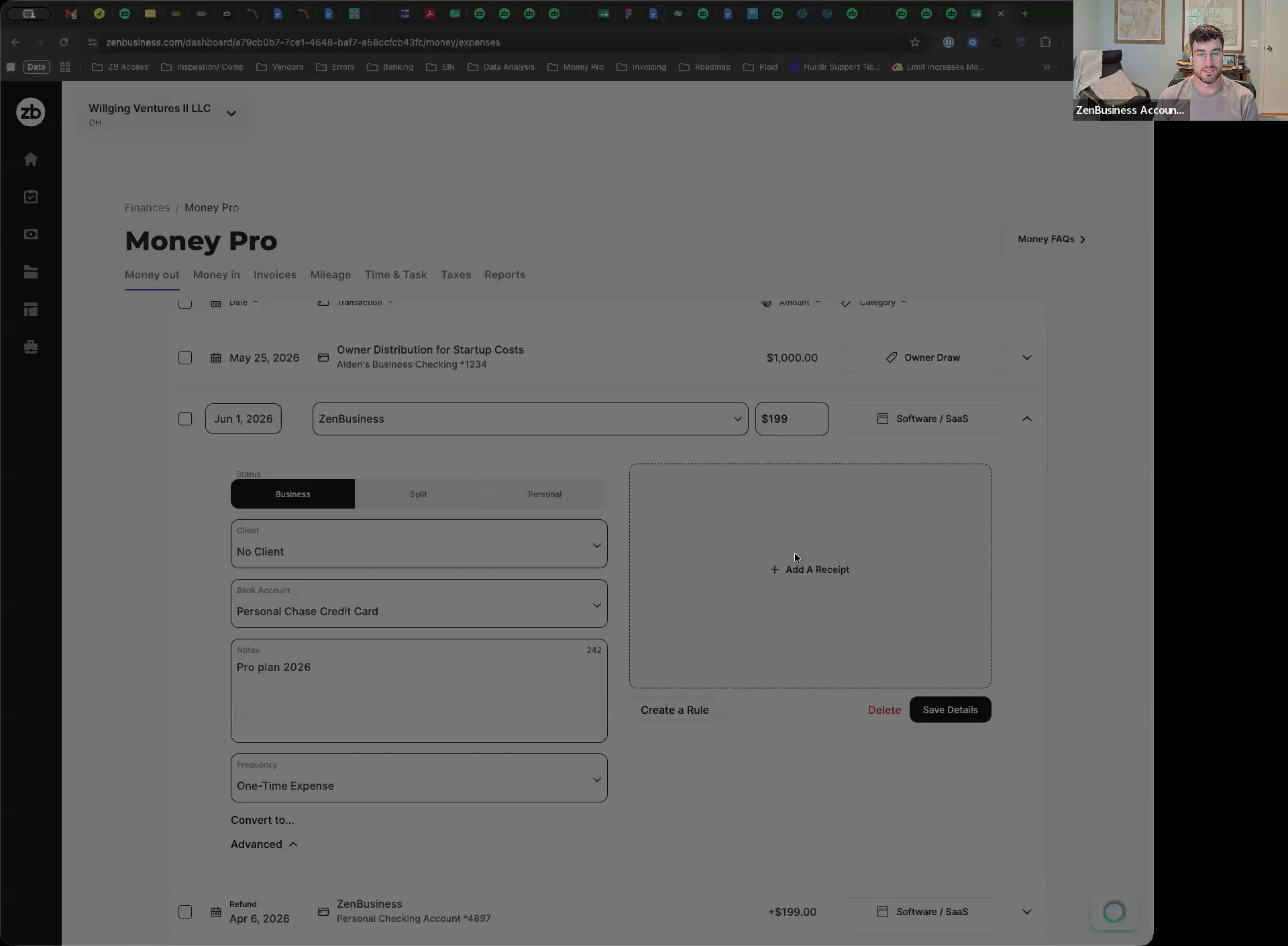
I paid a business expense with my personal credit card
Add it manually:
1. Go to Finances → Money Pro → Money out → + Add Expense
2. Enter the date, amount, vendor, and category
3. Save — it appears in your expense reports and tax calculations
Alternatively, link your personal credit card as a Mixed Use account so transactions import automatically, then tag each one as Business during your regular review.
My expenses report shows personal purchases from last year
Go to Expenses, filter by date range, find the personal transactions, and change each one's category to Personal or Owner's Draw. Reports update automatically. There's no batch-retag — you need to retag each transaction individually.
Frequently Asked Questions
What account type should I use for my main business checking account?
Business Only. If you have a dedicated business checking account used only for business, set it to Business Only and Money Pro handles tagging automatically.
I accidentally set my account to the wrong type. Can I change it?
Yes — change the account type in Banks & Integrations at any time. Changing the type affects how new incoming transactions are tagged. Previously imported transactions retain their original tags unless you manually re-tag them.
Does the account type affect my tax estimates?
Yes. Only transactions tagged as Business are included in your expense totals for tax estimation. Personal-tagged transactions are excluded. If your account type is wrong, your tax estimates will be off.
What is Owner's Draw and how is it different from Personal?
An Owner's Draw is money you transfer from your business to yourself — your compensation as a business owner. It's not a business expense; it's a reduction of your equity. Tag it as Owner's Draw so Money Pro can track how much you've paid yourself. Personal is for accidental personal spending on a business card. Both are excluded from expense reports but appear in separate tracking categories.
Should I link my personal bank account to Money Pro?
Only if you regularly pay business expenses from it. Set it to Personal Only to exclude all its transactions, or Mixed Use to selectively tag business transactions. ZenBusiness recommends a dedicated business account — it eliminates the manual sorting work entirely.
Does Money Pro automatically separate personal and business on a dedicated business card?
Only if the account type is Business Only. Even with a dedicated business card, if the account type is Mixed Use, transactions won't be auto-tagged. Go to Banks & Integrations and confirm the account type matches how you actually use the account.
Related Articles
- How to Connect Your Bank Account to Money Pro
- How to Track Expenses in Money Pro
- How to Manage Bank Account Start Dates
- Tax Preparation & Reports in Money Pro
Still need help? If you still have questions our support team is happy to help!