
How to Connect Your Bank Account to Money Pro
To connect your bank account to Money Pro, go to your ZenBusiness dashboard → ZenBusiness Money → Overview, click "Track your expenses," select "Link account," and connect through Plaid. You'll need your online banking username and password. Over 10,000 U.S. financial institutions are supported. Pending transactions do not appear until they post at your bank; after they post, external Plaid-connected banks usually sync to Money Pro within 24 hours.
Before You Begin
If you have ZenBusiness Banking: Your account links to Money Pro automatically — no Plaid connection required in most cases. Just log in and your ZenBusiness Banking transactions should already appear in Money Pro. If you are asked to search for an institution, search for ZenBusiness Banking rather than the underlying banking provider name. If transactions still are not showing, contact our support team.
For all other banks: You'll connect through Plaid, a bank-level secure connection service used by hundreds of financial apps. You need:
- Your online banking username and password
- Your phone (for two-factor authentication if your bank uses it)
Note: Bank linking through Plaid is available on desktop web and mobile web browser only — it is not currently available in the ZenBusiness mobile app. Open your browser on a phone or computer to complete the connection.
Step-by-Step: Connect Your Bank Account
- Log in at zenbusiness.com
- Go to ZenBusiness Money → Overview in the left navigation
- Click the "Track your expenses" card at the top of the page
- On the Expenses page, click "Link account"
- Click "Connect with Plaid"
- Search for your bank by name
- Enter your online banking username and password in the Plaid window
- Complete any two-factor authentication your bank requires
- Select which accounts to sync (checking, savings, credit cards — select only business accounts)
- Accept the terms and click continue
After connecting, Money Pro imports up to 730 days of transaction history, depending on what your bank shares. Recent posted transactions usually appear within a few hours and up to 24 hours after the first connection, while older history may take longer or require the historical import option. New purchases do not appear while they are pending at your bank; because posting can take 1–3 business days, the full purchase-to-Money-Pro timeline can feel like 3–5 business days, especially around weekends or federal holidays.
Set Bank Account Start Date: Right after a new account finishes linking, Money Pro may show a Pull Historical Transactions date picker so you can choose how far back to import for that account. This is the same date-picker mechanism that shows up later as the "Go Further Back" banner on the Expenses page — see Going Further Back in the Expense Tracking article — and it sets the same Start Date documented in How to Manage Bank Account Start Dates.

Connect Additional Accounts
To add more accounts after your initial setup:
- Go to Expenses or Income → click the gear icon (top right)

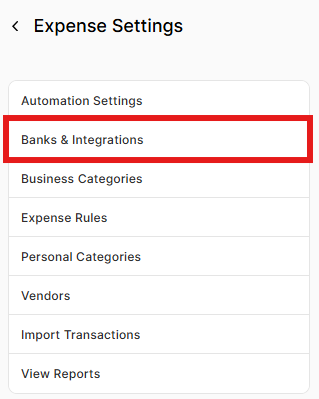
- Select Banks & Integrations
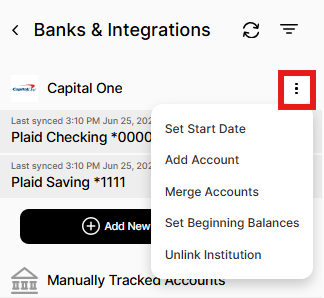
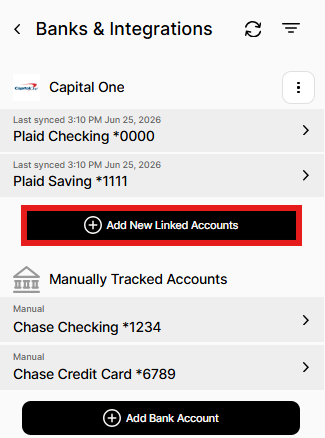
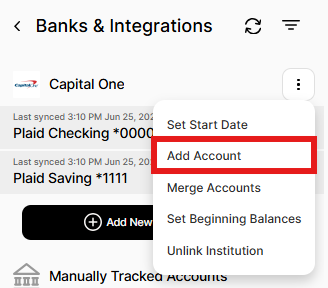
- Click + Add Account and go through the Plaid flow again
You can connect multiple checking accounts, savings accounts, and credit cards. Each account from the same bank must be linked under the same login.
What Plaid Can and Cannot Do
Plaid can access:
- Transaction history (dates, amounts, merchant names)
- Account balance
- Account type and name
Plaid cannot:
- Transfer money or make payments
- See your password after the initial login (it uses a secure token)
- Access accounts you didn't select
All data is 256-bit SSL encrypted — the same level used by banks. ZenBusiness never stores your banking credentials.
Frequently Asked Questions
My bank isn't showing up in Plaid. What do I do?
Search by your bank's full legal name — sometimes partial names don't return results. Plaid supports 10,000+ institutions, but some smaller community banks and credit unions may not be in the network. If your bank isn't available, you can manually import transactions using a CSV file from your bank. See How to Import Transactions via CSV.
I use ZenBusiness Banking. Should I search for ZenBusiness Banking or Thread?
Search for ZenBusiness Banking. Money Pro's connection flow is labeled for the ZenBusiness Banking product, even if the account is supported by an underlying banking partner. If the flow asks for a phone number, use the phone number tied to your ZenBusiness Banking login. Do not keep retrying a failed connection under a different bank name.
How far back does Money Pro import?
Up to 730 days (approximately 2 years) of transaction history, depending on how far back your bank shares data through Plaid. Some banks provide 30–90 days by default; others share up to 730 days.
Why can it take 3–5 business days for a transaction to show up?
Money Pro waits for transactions to fully post to your bank account before importing them. Pending charges can change amount or reverse, so Money Pro does not import them. After a transaction posts, external Plaid-connected banks usually sync it to Money Pro within 24 hours, but the bank posting step often takes 1–3 business days first. Weekends and federal holidays can add extra delay.
Can I connect my personal bank account?
You can — set the account type to "Mixed Use" and Money Pro will prompt you to tag each transaction as business or personal. However, we recommend keeping dedicated business accounts to minimize the manual categorization work.
What happens if I change my bank password?
Changing your bank password breaks the Plaid connection. Money Pro will prompt you to "Fix your account" on the Expenses page — click through and re-enter your new credentials to restore the sync.
Related Articles
- Is It Safe to Link My Bank Account to Money Pro?
- Money Pro Account Types: Business Only, Mixed Use, Personal
- How to Import Transactions via CSV
Still need help? If you still have questions our support team is happy to help!