
How to Fix a Broken Bank Connection in Money Pro
If your bank connection shows a red error icon, a "Fix your account" prompt, or stops syncing transactions, the most common cause is expired credentials — banks require re-authentication through Plaid every 60–90 days. Go to Banks & Integrations, click Reconnect next to the affected bank, and re-enter your online banking credentials. Most connection errors resolve in a few minutes this way.
What a Broken Connection Looks Like
A broken bank connection shows up as:
- A red error icon next to the bank name in Banks & Integrations
- A "Fix your account" or "Reconnect" banner on the Expenses page
- Transactions stopped appearing while the bank still shows as connected (no error icon)
- A "connection expired" or similar message

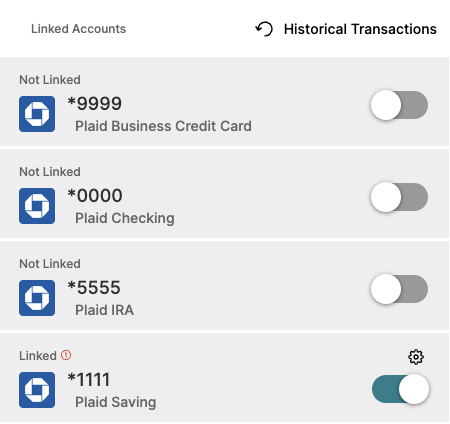
Step 1 — Reconnect Through Plaid
For most external banks (Chase, Bank of America, Wells Fargo, credit unions, etc.):
- Log in at zenbusiness.com
- Go to Finances → Money Pro → Money out → gear icon → Banks & Integrations
- Find the bank with an error icon and click it
- Select Reconnect or Fix Connection
- Log in to your bank through the Plaid window using your current online banking credentials
- Complete any two-factor authentication your bank requires
- Confirm the accounts you want to sync
After reconnecting, transactions from the past 24–48 hours should appear within a few hours.
Step 2 — Update After a Password Change
If you recently changed your online banking password, Money Pro's Plaid connection broke the moment your password changed. Plaid uses a token tied to your credentials — once the password changes, the token expires.
Fix: Follow the same Reconnect steps above (Step 1). Use your new banking password when Plaid prompts you. The connection will re-establish with the new credentials.
Set a reminder to reconnect Money Pro the next time you update your banking password — it won't reconnect automatically.
Step 3 — ZenBusiness Banking (Special Case)
If you use ZenBusiness Banking and the connection to Money Pro broke:
Do not disconnect and reconnect — for ZenBusiness Banking, disconnecting and then reconnecting via Plaid often creates a new, separate connection instead of restoring the original, which can lose your transaction history.
Instead:
1. Look for a "Fix Connection" prompt in Banking → Connected Accounts
2. If there's no prompt and transactions have stopped, contact our support team directly
3. Support can restore the direct ZenBusiness Banking → Money Pro link on the backend
Step 4 — If Reconnect Doesn't Fix It
If you reconnected and the bank still shows an error or transactions still aren't appearing after 24 hours:
Try a full disconnect and reconnect:
1. Go to Banks & Integrations → gear icon next to the bank → Disconnect
2. Confirm the disconnection
3. Click + Add Account and reconnect through Plaid from scratch
If you're in the account's Edit a Bank Account panel instead of the gear-icon menu, the same disconnect action is labeled Unsync Account — it's the same step, just a different button in that view.

Note: Disconnecting a bank does not delete your transaction history. Existing transactions stay in Money Pro. Only new transactions from the bank will stop importing until you reconnect.
If the bank still won't connect:
- Your bank may not be supported by Plaid (rare for major banks)
- Plaid may be experiencing a temporary issue with your specific bank
- There may be a backend token mismatch — contact our support team
Import Transactions Manually (While Waiting)
If your bank won't reconnect right away and you need your transactions:
- Download a CSV or OFX statement from your bank's website
- Go to Money Pro → Settings → Import Data → Import CSV
- Map the columns and import
This is a temporary workaround. Once your bank connection is restored, Money Pro may import some transactions again — review for duplicates. See How to Import Transactions via CSV for the full process.
Frequently Asked Questions
How often does Plaid disconnect my bank?
Most banks require re-authentication through Plaid every 60–90 days as a security measure. This is the bank's policy, not a Money Pro issue. You'll see a "Fix your account" prompt when this happens. Some banks disconnect even more frequently. Setting a calendar reminder every 60 days to check your bank connections helps catch this before transactions go missing.
My bank says it's reconnected but transactions still aren't appearing.
Wait up to 24 hours — the first sync after reconnecting takes time. If transactions still don't appear after 24 hours, check your bank's Start Date setting (Banks & Integrations → gear icon → Start Date) and make sure it's set before your expected transactions. If the start date looks correct, see My Bank Is Linked but I Don't See Any Transactions for additional troubleshooting.
Reconnecting keeps failing — Plaid won't accept my credentials.
Confirm you're using your online banking credentials, not your debit card PIN. If you recently changed your bank password, use the new one. If you have two-factor authentication enabled, have your phone nearby for the verification code. If credentials are definitely correct but Plaid still rejects them, try waiting a few hours — Plaid sometimes has temporary issues with specific banks — or contact our support team.
My bank upgraded or converted its systems and now reconnecting fails with a credentials error.
When a bank or credit union upgrades, merges, or converts its online banking platform, it often issues new login credentials — and your old username and password stop working for the connection even though they used to be correct. First, log in to your bank's own website or app directly to confirm which credentials currently work; if your bank issued new credentials as part of the upgrade, use those. Then reconnect in Money Pro (Step 1 above) with the new credentials. If your credentials work on the bank's own site but the reconnect still shows a credentials error, contact our support team with the bank name and the exact error message so the connection can be investigated.
How do I update the phone number Plaid has on file for me?
The phone number attached to your Plaid account is entered and managed by you directly through Plaid — ZenBusiness can't change it for you. Visit Plaid's own account portal at my.plaid.com to review and update the phone number and other contact details Plaid has on file. This is separate from the contact information on your ZenBusiness account, which you manage through your ZenBusiness dashboard.
I disconnected my bank by mistake. Will I lose my transaction history?
No. Disconnecting a bank in Money Pro only stops future transaction imports. All transactions that were already imported remain in Money Pro. Reconnect through Plaid to resume importing new transactions.
My bank isn't found in Plaid at all.
Some smaller banks and credit unions aren't in the Plaid network. If your bank can't be found, use manual CSV import as a workaround — download a statement from your bank and import it into Money Pro monthly. See How to Import Transactions via CSV.
I tried to disconnect (unlink) a bank account and it fails or shows an error.
Refresh the page and try again — a one-time refresh clears most temporary unlink errors. Go to Banks & Integrations and confirm whether the account still shows as connected before retrying, since retrying while a prior attempt is still processing can trigger another error. If the disconnect still won't complete after a couple of tries, or the account reappears right after you remove it, contact our support team with the bank name and what you saw so the connection can be removed on their end.
Related Articles
- How to Connect Your Bank Account to Money Pro
- My Bank Is Linked but I Don't See Any Transactions
- How to Import Transactions via CSV
Still need help? If you still have questions our support team is happy to help!