
How to Find and Remove Duplicate Transactions in Money Pro
If the same transaction shows up twice in Money Pro, work through the five checks below in order. Stop at the first one that matches, then remove the extra copy with the delete steps at the end.
Deleting a transaction in Money Pro does not change your bank account. It only changes your books.
Check 1: Does your bank also show it twice?
- Open your bank's own app or website.
- Find the same date and amount.
If your bank lists two charges, both are real. Keep both in Money Pro.
If your bank lists one charge, go to Check 2.
Check 2: Was it pending and then posted?
Money Pro imports a charge once your bank has finished processing it. A charge your bank showed as pending can later settle with a slightly different description.
If it was posted within the last few business days, wait. This usually clears on its own once your bank finishes settling it.
If both copies are still there after that, go to Check 3.
Check 3: Is the same account linked twice?
- Click the gear icon in Money Pro, then choose Banks and Integrations.
-
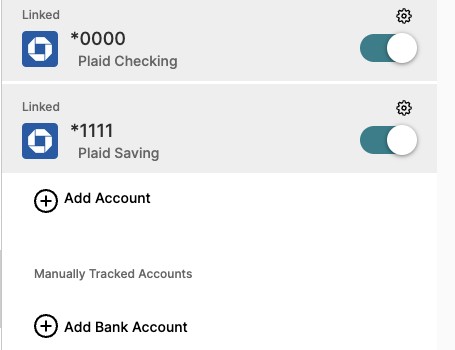
Look at the Linked Accounts list. Do you see the same bank and the same last 4 digits listed twice?
-
If you do, click the gear icon next to the copy you want to remove. The Edit a Bank Account panel opens.
-
Click Unsync Account at the bottom of the panel. Keep the other copy linked.

Unsync keeps the transactions Money Pro already imported. Go to the delete steps below to remove the extra ones.
If each account appears only once, go to Check 4.
Check 4: Did you relink the account?
When you relink a bank, Money Pro can import the same period a second time. Fix the start date first so it does not happen again.
- Find the date of the last transaction that imported correctly on the old link.
- Click the gear icon, choose Banks and Integrations, then click the gear icon next to the account.
- Next to Start Date, click Edit.
-
Enter the day after that last good transaction, then click Save.

-
Delete the duplicates that already imported, using the steps below.
Moving the start date forward only hides older transactions. It does not delete them, so you still need to delete the duplicates.
If you did not relink, go to Check 5.
Check 5: Did you enter it by hand and then sync it?
If you added an expense or income entry yourself, and your bank later synced the same payment, you now have two copies. Keep the one that came from your bank and delete the one you typed in.
Delete the extra transaction
To delete one transaction:
- Go to Money out or Money in and click the transaction to open it.
-
Click Delete.

-
Confirm the deletion.
To delete several at once:
- Tick the box next to each duplicate.
-
Click the trash icon in the bar that appears at the top of the list.

-
Confirm the deletion.
Bank transfers have to be deleted one at a time.
If you delete the wrong one, see How to Delete and Restore Transactions in Money Pro.
Frequently Asked Questions
Why do I see the same transaction twice in Money Pro?
The most common causes are the same bank account linked twice, a relinked account that imported the same dates again, a manual entry added for a payment that later synced, or a charge that was pending and then posted. The five checks above take you through each one in order.
Will deleting a duplicate change my bank account?
No. Money Pro only reads your bank's transactions. Deleting a transaction in Money Pro changes your books and reports, not your bank.
I moved my start date forward. Did that delete my duplicates?
No. Moving the start date forward hides older transactions, and they come back if you move it back. Delete the duplicates themselves to remove them from your reports.
Can I tell which copy is the duplicate?
Keep the copy that came from your bank, and delete the one you entered by hand or the one from the extra link. If both came from your bank, they are usually identical, so either one can go.
What if my bank shows two charges for the same amount?
Then both are real charges and both should stay in Money Pro.
Still need help?
If none of the five checks match, contact our support team or use live chat on your dashboard. Have the date, amount, and description from both Money Pro and your bank ready.