
Getting Started with Money Pro
How to set up your account, connect your bank, and start tracking your business finances from day one.
Overview
Getting Money Pro up and running takes about 10 minutes. The most important step is connecting your bank account — that's what makes the automatic tracking possible. Once your bank is linked, Money Pro pulls in up to 730 days of your transaction history, categorizes each transaction, and gives you an instant snapshot of your business finances.
If you use ZenBusiness Banking, setup is even faster. Your banking account connects to Money Pro automatically — no Plaid login required. You just sign into your ZenBusiness dashboard and your transactions are already there.
For everyone else, connecting an external bank takes a few minutes using Plaid, the same secure bank connection service used by major financial apps. You'll need your online banking username and password. Over 10,000 U.S. financial institutions are supported.
Financial tracking matters more than most new business owners realize. It's required — if your business makes money, you need to file taxes, and without clean records that process becomes overwhelming. Included with Money Pro is free federal and state tax filing through our tax partner, so your Money Pro records can jumpstart the filing process automatically. And if you're self-employed or an LLC, quarterly estimated taxes may be required — Money Pro helps you calculate what you owe each quarter before penalties add up.
Before You Begin
Have these things ready before setup:
- Your online banking credentials — username and password for the accounts you want to connect. You'll enter these in the secure Plaid connection window.
- A dedicated business bank account — if your business and personal finances share an account, separate them first. Mixing personal and business expenses creates bookkeeping headaches and can put your LLC's liability protection at risk.
- Which accounts to connect — most business owners connect their business checking account and business credit cards. You can add more at any time.
Step-by-Step: Setting Up Money Pro
Step 1: Access Money Pro
- Log in at zenbusiness.com
- Click Finance in the main navigation (look for "ZenBusiness Money" in the sidebar)
- Select Overview or Money Pro
If you're subscribing for the first time, you'll see the pricing page. Select Monthly ($30/month) or Annual ($300/year) and complete checkout. You'll have immediate access.
Step 2: Connect Your Bank Account
If you have ZenBusiness Banking: Your account links automatically. Your transactions should already be appearing in Money Pro. Skip to Step 3. If they're not showing up, contact our support team.
For all other banks (desktop/web only):
⚠️ Note: Bank account linking through Plaid is currently available on desktop web and mobile web browsers only. It is not yet available in the ZenBusiness mobile app. For the best experience, connect your accounts from a computer.
- From the ZenBusiness Money sidebar, go to Overview
- Click the "Track your expenses" card at the top
- You'll be taken to the Expenses page — select "Link account"
- Click "Connect with Plaid"
- Search for your bank by name and enter your online banking credentials
- Complete any two-factor authentication your bank requires
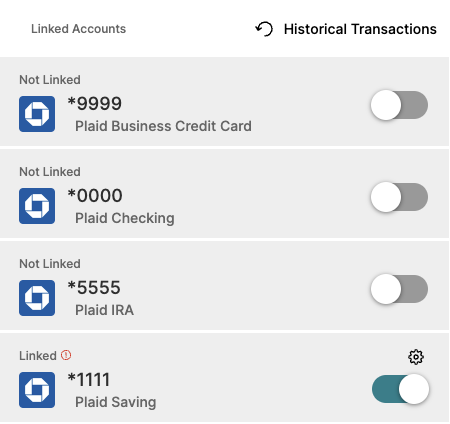
- Select which accounts to sync (checking, savings, credit cards — only include business accounts)
- Accept the terms and click continue
Transactions typically appear within 3–5 business days after posting to your bank. Money Pro waits for transactions to fully post before importing them to ensure accuracy. Banking holidays may cause additional delays.
Step 3: Set Your Account Type
Money Pro tags transactions differently depending on the account type you choose:
- Business Only (default) — All transactions automatically tagged as business expenses. Use for dedicated business accounts.
- Mixed Use — Each transaction is left untagged for you to review. Use if you occasionally pay personal expenses from a business account.
- Personal Only — Transactions tagged as personal and excluded from business reports. Available but not recommended — Money Pro is built for business tracking.
To set the account type:
1. Go to Expenses or Income → click the gear icon (top right)
2. Select Banks & Integrations
3. Click the gear icon next to the account you want to configure
4. Set the Account Type and click Save

Step 4: Review and Categorize Transactions
After your bank connects, Money Pro auto-categorizes transactions using the merchant name. Spend 10–15 minutes reviewing the initial batch:
- Go to the Expenses tab
- Look for uncategorized transactions (filtered view available)
- Click Find Deductions to have Money Pro scan all expenses and group them into: Very Likely business, Not Likely, and Needs Review — then confirm each group in bulk

- For any miscategorized items, click the transaction and select the correct IRS Schedule C category
- When prompted with a "Suggested Rule," accept it to automatically apply the same category to future transactions from that merchant
You can also split a transaction that contains both business and personal portions — click the transaction and choose Split to divide the amount between business and personal.
Step 5: Set Up Your Tax Profile
For Money Pro to accurately estimate your quarterly taxes, complete your tax profile:
- Go to the Taxes section in Money Pro
-
Click Tax Profile and enter:
- Federal and state filing status
- Any expected W-2 income (if you have a day job alongside your business)
- Expected 1099 income
- Your deduction preference: standard mileage rate or actual vehicle expenses
- State-specific exemptions (if your state has no income tax like Texas, set exemptions to zero)

Step 6 (Optional): Import Existing Data
If you're migrating from QuickBooks, a spreadsheet, or another tool:
- Go to the gear icon on the Expenses or Income page → Import Transactions
- Download your transactions from your bank or export from your existing tool as a CSV
- Upload the CSV, map the columns (Date, Vendor, Amount, Category)
- Review the transaction list, deselect any you don't want to import, and click Done
Important: Money Pro does not deduplicate — importing the same file twice creates double entries. If you bank is already linked, do not also import the same period's transactions by CSV.
Quick Setup Checklist
- [ ] Link your business bank accounts and credit cards
- [ ] Set the account type for each linked account
- [ ] Review and categorize initial transactions (use Find Deductions)
- [ ] Set up your tax profile
- [ ] Set up invoicing (if you bill clients)
- [ ] Add your first vehicle under Mileage Tracking (if you drive for business)
Frequently Asked Questions
Is it safe to connect my bank account?
Yes. Money Pro uses Plaid, which connects your bank with 256-bit SSL encryption — the same level used by banks themselves. ZenBusiness never stores your banking credentials. The connection is read-only: Plaid can see your account type, balance, and transaction history, but cannot transfer money, make payments, or modify your accounts. ZenBusiness receives only a secure token with limited read access.
Can I link my account through the ZenBusiness mobile app?
Not currently. Bank account linking through Plaid is only available on desktop web and mobile web browsers. You can access Money Pro on your mobile browser and complete the Plaid connection from there. The ZenBusiness mobile app does support other Money Pro features (mileage tracking, expense review) once your accounts are already linked. Receipt upload is web-only and is not available in the mobile app — but it works from a mobile web browser on your phone.
How far back does Money Pro import my transactions?
After linking, Money Pro can pull up to 730 days (roughly 2 years) of transaction history. The actual amount depends on how far back your bank shares data through Plaid. Many banks provide 30–90 days by default; some share up to 730 days. If you need transactions beyond what imported automatically, use the gear icon → Banks & Integrations → select the account → adjust the Start Date to pull earlier history if your bank supports it.
How long until my transactions appear?
New transactions take 3–5 business days to appear in Money Pro after they post to your bank account. Money Pro waits for transactions to fully settle before importing to avoid importing pending transactions that might change or be reversed. If transactions from more than 5 business days ago still haven't appeared, contact our support team — there may be a connection issue between ZenBusiness and your financial institution.
Can I connect multiple bank accounts?
Yes. Connect as many business accounts and credit cards as you use for your business. Each bank must be connected separately through Plaid. Note: you cannot link multiple logins at the same financial institution — if you have multiple accounts at one bank under the same login, select all of them during a single Plaid connection.
What if I change my bank password?
Changing your bank password breaks the Plaid connection. When that happens, Money Pro will alert you to "Fix your account" on the Expenses page. Click through and relink using your new credentials. Update it promptly to avoid gaps in transaction tracking.
Can I temporarily unlink an account without losing my transaction history?
Yes. Unlinking stops future syncing but keeps all previously imported transactions intact. To unlink: gear icon → Banks & Integrations → toggle off the accounts you want to disconnect. Your reports and historical data remain untouched. If you relink later, set the start date to the day after your last synced transaction to avoid duplicates.
My bank isn't showing up in Plaid. What do I do?
Plaid supports over 10,000 U.S. institutions including most large banks, regional banks, and credit unions. If you can't find yours, try searching by the bank's full legal name. If it still doesn't appear, your institution may not be in the Plaid network — contact our support team to explore options including manual CSV import.
Related Articles
Still need help?
Contact our support team via live chat on your dashboard or our support team. We're available Monday–Friday during business hours.