
How to Update the Bank Account for Stripe Payouts in Money Pro
To update the bank account that receives Stripe payouts for Money Pro invoice payments, log in to Stripe and edit your payout bank account in Payout settings. After updating Stripe, make sure that same bank account is also connected to Money Pro through Plaid so Money Pro can match Stripe deposits to invoices and create Stripe fee transactions automatically.
Why the Same Bank Account Must Be Connected in Money Pro
Stripe controls where payouts are deposited. Money Pro controls your bookkeeping records. These are connected, but they are not the same setting.
When a client pays a Money Pro invoice online, Stripe processes the payment and deposits the net payout to your bank. Money Pro can automatically link that payout to the paid invoices and create the related merchant fee transactions, but only when Money Pro can see the receiving bank deposit through a connected bank feed.
That means the bank account receiving Stripe payouts should also be connected to Money Pro through Plaid. If you update your Stripe payout bank account but do not connect that same account in Money Pro, the money may still reach your bank, but Money Pro may not automatically see the deposit, link the payout to invoices, or create the matching fee transactions.
Step 1 — Update the Payout Bank Account in Stripe
- Log in at stripe.com with the Stripe account connected to Money Pro.
- Go to Settings → Bank accounts and scheduling or open Stripe payout settings.
- Find the bank account used for payouts.
- Click Edit or add a new bank account if Stripe shows that option.
- Enter the required bank details and save.
- Complete any verification steps Stripe requests.
Stripe may require the bank account currency and country to match your payout settings. If Stripe cannot verify the bank account, payouts may be delayed or fail until the issue is resolved.
Step 2 — Connect the Same Bank Account to Money Pro Through Plaid
After updating Stripe, confirm the receiving bank account is connected in Money Pro:
- Log in at zenbusiness.com.
- Go to Finance → Money Pro.
- Open Banking, Connected Accounts, or Banks & Integrations.
- Choose Link New Account or Connect Bank Account.

- Search for your bank and connect with your online banking credentials through Plaid.
- Confirm the account that receives Stripe payouts appears in Money Pro.
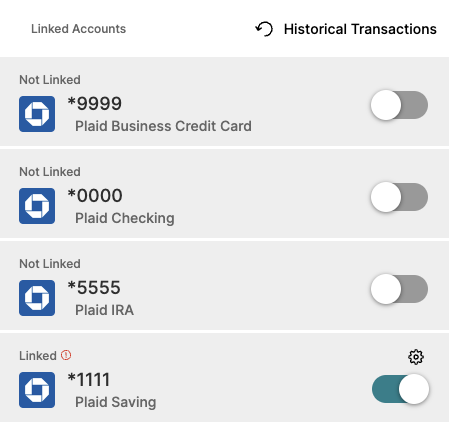
If that account is already connected, confirm it is syncing successfully. A disconnected or stale Plaid connection can prevent Money Pro from seeing new payout deposits.
Step 3 — Confirm Payouts Are Matching Correctly
After the next Stripe payout arrives, check both Stripe and Money Pro.
In Stripe, open Balance or Payouts and confirm the payout was sent to the new bank account. In Money Pro, check your synced transactions for the matching Stripe deposit. When the payout account is connected correctly through Plaid, Money Pro should be able to match the Stripe deposit to the related paid invoices and record Stripe processing fees.
If you see the deposit in your real bank account but not in Money Pro, check whether the bank connection is paused, disconnected, or waiting for re-authentication. Bank transactions often appear in Money Pro after they post and sync from the bank.
Troubleshooting
Stripe says the new bank account cannot be verified
Re-enter the bank details in Stripe and confirm the routing number, account number, country, and currency are correct. If the bank details are correct but Stripe still cannot verify them, contact Stripe support from your Stripe dashboard.
Money Pro does not show the new payout bank account
Connect the account in Money Pro through Plaid. If it is already connected, reconnect it to refresh the bank feed. Money Pro needs the receiving account in its transaction feed before it can match Stripe payout deposits automatically.
Payout deposits are showing as unmatched income
If the Stripe deposit is visible but not linked to invoices, open the deposit in Money Pro and look for an invoice linking option. Also confirm the Stripe payout account is connected through Plaid and the invoice was paid through the Money Pro Stripe connection, not through a separate Stripe account.
Frequently Asked Questions
Do I update my Stripe payout bank account in Money Pro or Stripe?
Update the payout bank account in Stripe. Stripe controls where payout funds are sent. Then connect that same bank account to Money Pro through Plaid so Money Pro can see the deposits and automatically match Stripe payouts to invoices and fee transactions.
What happens if I change my Stripe bank account but do not connect it to Money Pro?
Stripe may still send payouts to the new bank account, but Money Pro may not automatically see those deposits. Without the Plaid-connected receiving account, Money Pro cannot reliably link payouts to invoices or create the related Stripe fee transactions.
Can I use a different bank account for Stripe than the one connected to Money Pro?
You can, but it can break automatic reconciliation. For the smoothest bookkeeping, the bank account receiving Stripe payouts should be connected to Money Pro through Plaid. Otherwise, you may need to manually track or reconcile deposits.
How long does it take after I update my bank account?
Stripe may need time to verify the new bank account. After Stripe sends a payout, your bank must post it and Money Pro must receive the transaction through Plaid. Timing depends on Stripe verification, bank processing, and the bank feed sync.
Who should I contact if payouts are going to the wrong account?
First check Stripe payout settings to confirm the bank account on file. If Stripe sent the payout to incorrect bank details, contact Stripe support. If the deposit reached your bank but does not appear in Money Pro, check or reconnect the Plaid bank connection in Money Pro.
Related Articles
- How to Update Your Stripe Payout Schedule
- How to Check Why a Stripe Payout Is Delayed or Missing
- Collecting Payments with Money Pro
- Getting Started with Money Pro
Still need help? If you still have questions, our support team is happy to help.