
How to Customize Webmail Preferences and Connect Another Email Account
ZenBusiness Webmail settings let you control how messages display, how your name and signature appear, how mail is forwarded, and how your account is recovered. Open mail.zenbusiness.com, then select Settings.
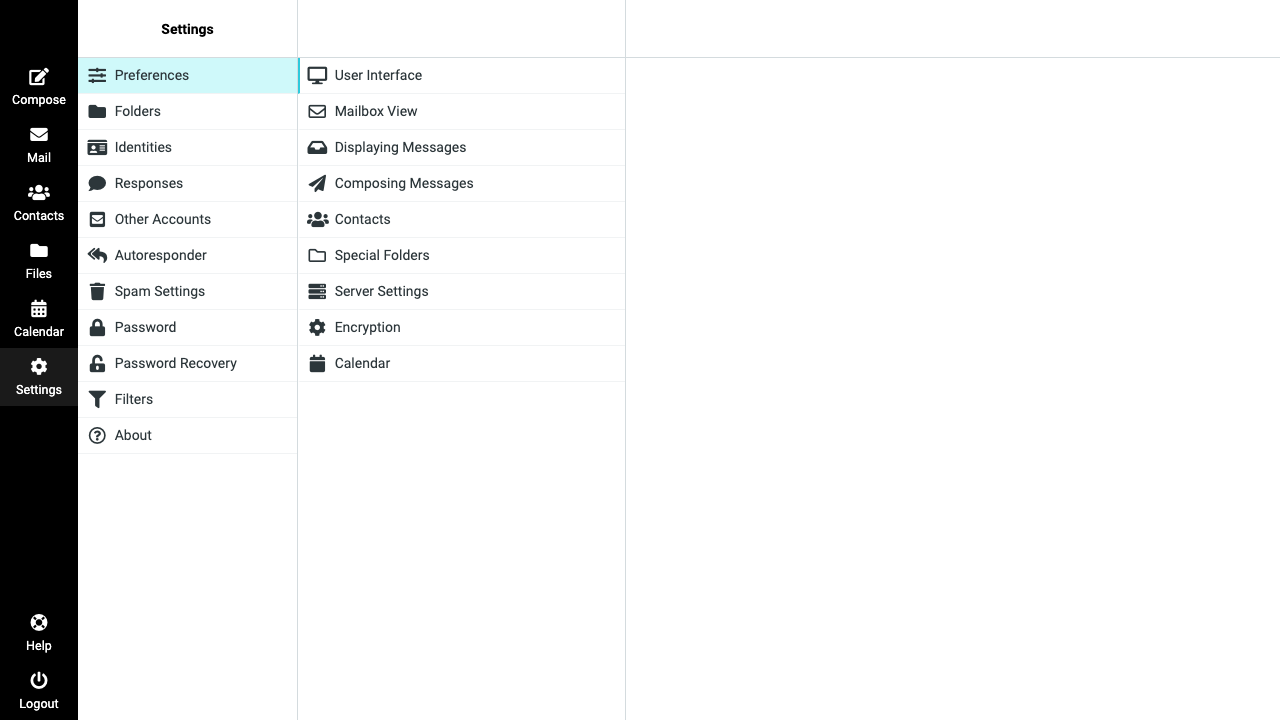
Customize How Webmail Works
Open Settings → Preferences to adjust your language, time zone, date and time format, inbox refresh rate, and message display. You can also control preferences such as whether messages are marked as read automatically, whether threads expand, how many rows appear per page, whether messages open in a new window, and how Webmail displays HTML content or attached images.
Use a time zone that matches where you work so message times and calendar events remain accurate. Choose an inbox refresh rate that helps you stay current without repeatedly refreshing the page. If you are changing several preferences, save each section and return to the inbox to confirm the result.
Set Your Sending Identity and Signature
Go to Settings → Identities to manage the name recipients see on outgoing mail, your organization name, a reply-to address, and your signature.
- Select the existing identity, or choose Create when that option is available.
- Update the display name and reply-to address as needed.
- Enter the signature you want to append to outgoing messages.
- Enable HTML formatting only when you need formatted text, links, or images.
- Save, then send yourself a test message to confirm the result.
Use a reply-to address only when replies should go somewhere other than the mailbox you send from. Keep a signature concise and include only current contact details.
Secure Access and Recover Your Password
Use Settings → Password to change your current password. Enter the current password, enter the new password twice, and save. Choose a strong, unique password that you do not use on another account.
Set up recovery while you can still sign in: go to Settings → Password Recovery, choose SMS or email recovery, enter the destination, confirm with your current password, and enter the response token sent to that destination. If recovery was not configured before you are locked out, contact our support team for a verified manual reset.
For first-time access, password recovery, and mail-app server settings, see Set Up and Access ZenBusiness Business Email.
Forward, Filter, or Save Common Replies
To send incoming mail to another address, use Settings → Filters and click Create. Under Actions, choose Send message copy to or Redirect message to, enter the destination address, and click Save.
Use Settings → Filters to apply rules to incoming mail, such as moving invoices to a folder or forwarding messages with a specific subject. See How to Organize ZenBusiness Webmail With Folders, Search, and Filters for the complete filtering workflow.
Use Settings → Responses to save text you send frequently. Start with a saved response, then personalize it before sending so the recipient receives a complete and accurate answer.
Forwarding ZenBusiness email is different from connecting the inbox to Outlook, Apple Mail, or Gmail with IMAP. Do not enter ZenBusiness DNS or MX values into a mail app. For supported device setup, use Set Up ZenBusiness Email on Desktop and Gmail.
Retrieve Mail From Another Email Account
Open Settings → Other Accounts and select Add to retrieve mail from another provider in the Webmail inbox. You will need the other provider's email address, username, password, incoming server address, port, and SSL setting. Choose where retrieved mail is saved, test the connection before saving, and decide whether to import older messages or only new unread mail.
This does not create another ZenBusiness Business Email mailbox. Each separate ZenBusiness address requires its own Business Email purchase.
Frequently Asked Questions
How do I change the time zone in Webmail?
Open Settings → Preferences and select the time zone that matches where you work, then save. Check the inbox and calendar afterward to confirm that new messages and events display at the expected time.
How do I add or change my email signature?
Open Settings → Identities, select your identity, update the signature field, and save. Enable HTML formatting only if you need formatted text, links, or images. Send yourself a test message to make sure the signature appears correctly.
Can I use a different reply-to address?
Yes. In Settings → Identities, add the reply-to address that should receive responses, then save. Use this only when replies should go to a different inbox than the address shown in the From field.
How do I recover a forgotten password?
At the Webmail sign-in screen, a Reset your password link appears under Login after a failed sign-in, but only if you previously configured password recovery under Settings → Password Recovery. If recovery was never set up, contact our support team for a verified reset.
Can I forward ZenBusiness email to Gmail?
Yes. Open Settings → Filters, click Create, and under Actions choose Send message copy to or Redirect message to, enter the Gmail address, then save. This forwards incoming mail only; follow Gmail's current “Send mail as” instructions if you also need to send from your business address.
Can I add another email account to Webmail?
Yes. Open Settings → Other Accounts and select Add, then enter the other provider's connection details. Test the connection before saving. This retrieves mail from the other account; it does not create a second ZenBusiness Business Email mailbox.
Related Articles
Still Need Help?
If a password, forwarding, or connected-account setting does not save, capture the exact error and contact our support team. Do not send passwords, recovery codes, or full account credentials in the request.